
Download HyperCam – Free Screen Recorder for Windows, Mac & Mobile | Record Screen & Audio
Looking for a reliable, lightweight screen recording software? HyperCam is a powerful tool designed for Windows users who want to record their desktop screen, capture audio, and create professional-quality tutorials, game highlights, or online training videos. Whether you're a student, educator, gamer, or content creator, HyperCam offers a seamless recording experience with built-in editing tools, customizable hotkeys, and support for multiple video formats like AVI, WMV, and ASF. The free trial version lets you test all features with a watermark, while the full version removes it for a one-time purchase. With its intuitive interface and minimal system impact, HyperCam is one of the best screen recording tools available in 2024.
Key Features of HyperCam
HyperCam stands out among screen recording software thanks to its robust feature set and user-centric design. One of its most notable features is the ability to record the entire screen, a specific window, or a custom region—perfect for capturing tutorials, software demos, or game sessions. The app supports both system audio and microphone input, allowing you to narrate your recordings with clear voiceovers. This makes it ideal for creating educational content or explaining complex workflows.
Another major advantage is the built-in video editor, which lets you trim clips, join multiple recordings, and adjust audio levels without switching to another program. You can also enhance mouse cursor visibility with customizable effects, such as enlarging the pointer or adding a glow effect—crucial for instructional videos. The software supports adjustable frame rates and compression settings, giving you full control over file size and video quality.
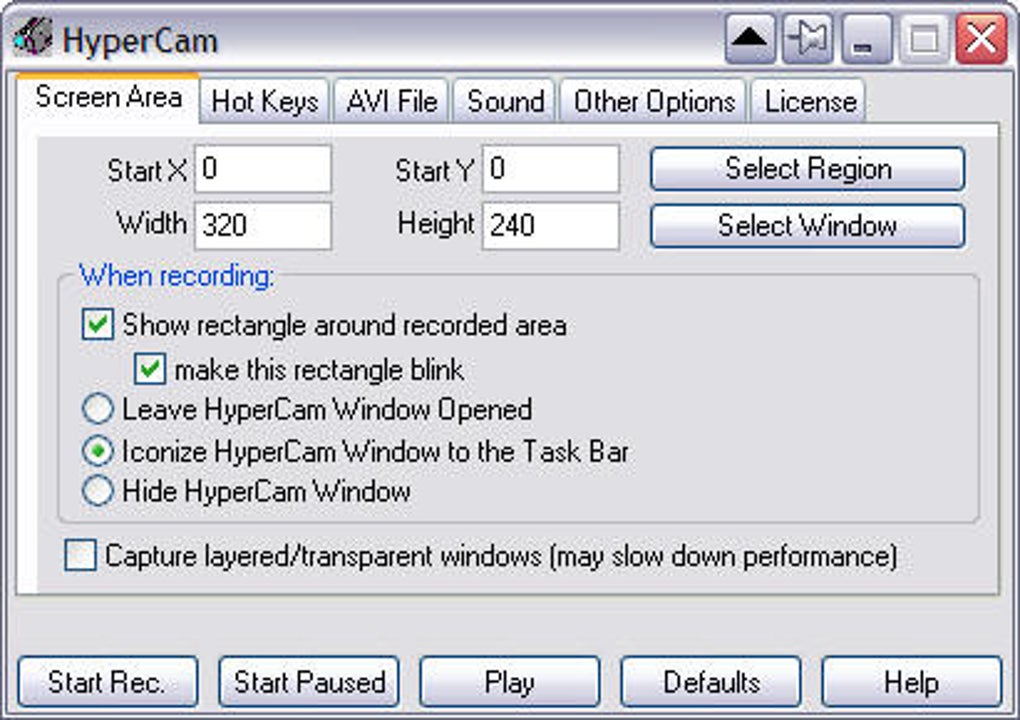
HyperCam also includes customizable keyboard shortcuts, so you can start and stop recording instantly with a single keypress. This is especially useful during live gameplay or webinars. The interface is clean and minimal, with two main tabs: Record and Options. The Record tab offers quick access to recording modes, while the Options tab lets you fine-tune settings like audio sources, video format, and cursor effects. Plus, the app integrates a helpful help section with FAQs and access to recent recordings.
- Record full screen, window, or custom region
- Support for system audio and microphone input
- Customizable hotkeys for instant recording control
- Basic video editor with trim, join, and audio adjustment tools
- Enhanced cursor effects for better visibility
- Multiple output formats: AVI, WMV, ASF
- Adjustable frame rate and compression settings
- Lightweight and low system resource usage
How to Install and Use HyperCam on Windows
Installing HyperCam is straightforward and takes just a few minutes. First, visit the official website and download the installer file. The software is compatible with Windows 7, 8, 10, and 11, ensuring broad accessibility. Once downloaded, run the installer and follow the on-screen prompts. The setup process is quick and doesn’t require advanced technical knowledge.
After installation, launch HyperCam. You’ll be greeted with a clean, colorful interface divided into two tabs: Record and Options. To begin recording, click the Record tab and choose your recording mode—entire screen, a specific window, or a selected area. You can also set your preferred audio source: system audio, microphone, or both. Once configured, click the Start Recording button or use your assigned hotkey (default is F9).
While recording, the app minimizes to the taskbar, showing playback, pause, and screenshot controls. When finished, press the stop button or use the hotkey again. The recorded video appears in your designated folder, and you can immediately open it in the built-in editor. Use the editor to cut unwanted sections, adjust audio levels, add text overlays, or combine multiple clips into one video. Once satisfied, export the final video in your preferred format.
For advanced users, the Options tab offers deeper customization. You can set default video quality, choose compressors, and fine-tune cursor effects. The app also remembers your last settings, making future recordings faster and more efficient.
Compatibility & System Requirements
HyperCam is primarily designed for Windows operating systems, including Windows 7, 8, 10, and 11. It runs smoothly on both 32-bit and 64-bit systems, requiring minimal RAM and CPU usage—ideal for older or low-end machines. The software does not require a powerful GPU, making it accessible to a wide range of users.
While HyperCam is currently only available for Windows, users on Mac or mobile devices can explore alternatives like QuickTime (Mac), OBS Studio, or Snagit. However, for Windows users seeking a simple, no-frills screen recorder, HyperCam remains a top choice. The app is lightweight, secure, and regularly updated to maintain compatibility with new Windows versions and hardware configurations.
For those concerned about safety, HyperCam is verified as free from malware and viruses. The download is secure, and the software does not collect personal data. It’s a trusted tool used by educators, professionals, and gamers worldwide.
- Operating System: Windows 7, 8, 10, 11 (32-bit & 64-bit)
- RAM: 512 MB minimum (1 GB recommended)
- Storage: 50 MB free space
- Processor: 1 GHz or faster
- Graphics: Standard video card support
Pros and Cons of HyperCam
Like any software, HyperCam has its strengths and limitations. Here’s a balanced overview to help you decide if it’s right for your needs.
Pros
- Simple and intuitive interface – Easy to navigate, even for beginners.
- Free trial with full functionality – Test all features before buying.
- Lightweight and fast – Minimal impact on system performance.
- Customizable hotkeys – Start/stop recording instantly.
- Built-in video editor – Trim, join, and adjust audio without extra tools.
- Supports multiple formats – Export in AVI, WMV, or ASF.
- Enhanced cursor effects – Great for tutorials and presentations.
Cons
- No Mac or mobile version – Limited to Windows users.
- Watermark in trial version – Can be distracting for professional use.
- No advanced editing features – Lacks filters, transitions, or effects.
- Basic audio mixing – Limited control over volume levels.
- No cloud storage – Files must be saved locally.
Frequently Asked Questions (FAQ)
Here are answers to common questions about HyperCam, helping you make an informed decision.
-
Is HyperCam free to download?
Yes, HyperCam offers a free trial version that allows full access to all features, including recording and editing. However, recorded videos in the trial version include a watermark. To remove it, you need to purchase the full license.
-
Can I record system audio and microphone at the same time?
Yes, HyperCam lets you record both system audio (like game sounds or video playback) and microphone input simultaneously, making it perfect for voice-over tutorials or live commentary.
-
Does HyperCam work on Windows 11?
Yes, HyperCam is fully compatible with Windows 11, as well as Windows 10, 8, and 7. It runs smoothly on both 32-bit and 64-bit systems.
-
Can I edit my recordings after recording?
Yes, HyperCam includes a basic video editor that allows you to trim clips, join multiple recordings, adjust audio levels, and add text overlays directly within the app.
-
What video formats does HyperCam support?
HyperCam supports AVI, WMV, and ASF formats. You can choose your preferred format during recording setup, and the app allows you to adjust compression settings for better file size control.
Conclusion: Is HyperCam Worth Downloading?
If you're searching for a reliable, easy-to-use screen recording tool for Windows, HyperCam is an excellent choice. It combines powerful recording capabilities with a lightweight design, making it ideal for students, educators, gamers, and professionals. The free trial lets you test all features without risk, and the affordable license removes the watermark for permanent use.
With its intuitive interface, customizable hotkeys, built-in editor, and support for multiple formats, HyperCam delivers great value. While it lacks advanced editing tools and isn’t available for Mac or mobile, its core functionality is solid and dependable.
Download HyperCam today and start creating high-quality screen recordings with ease. Whether you're making a tutorial, recording a game, or presenting online, this tool will help you share your screen with clarity and confidence.







